Performance Reviews for Employees

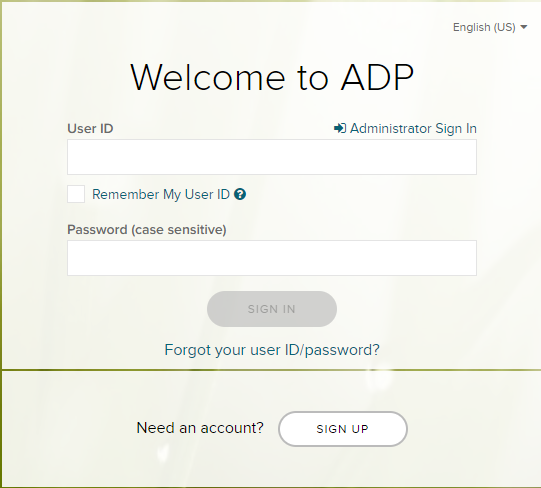
Performance reviews are completed in ADP Workforce Now at https://workforcenow.adp.com. If you have not set up your ADP credentials or have issues with your login, please use the support form.

1. Email Notification

You will receive an email notification from [email protected] when your review is available. Sample email:

2. Sign In to ADP

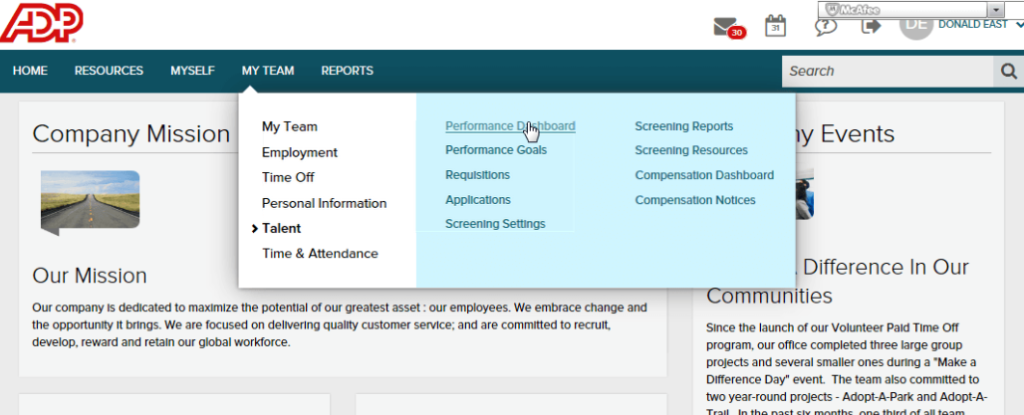
3. Navigate to the Performance Dashboard

Click Myself, Talent, Performance Dashboard.

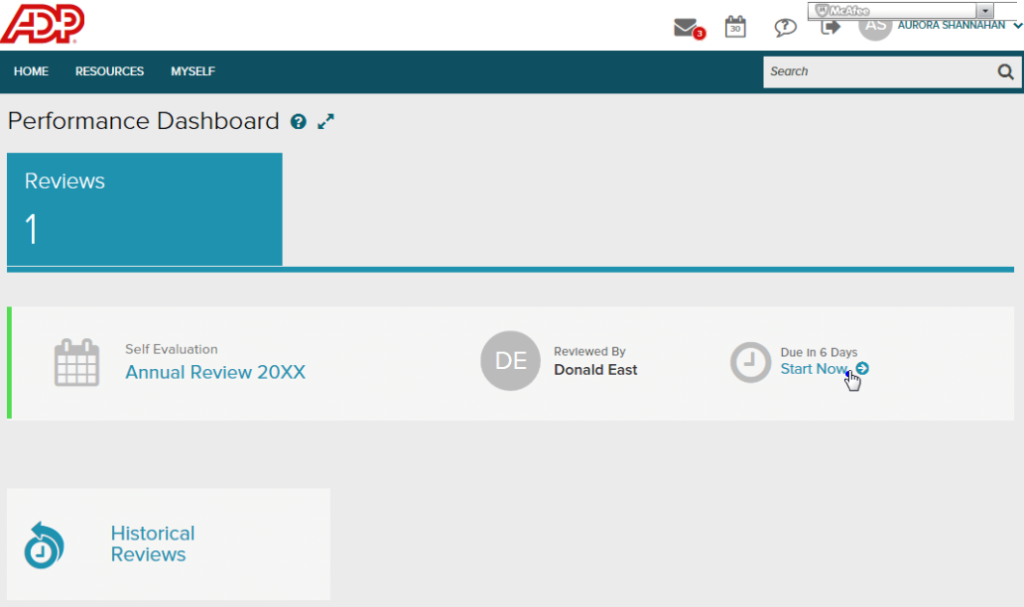
4. Start Your Review

To start your self-review, click Start Now.

5. Complete Questions

Scroll to the Questions section. Complete each question.

Activities and Achievements Guidance
Please see the instructions below for guidance on each of these questions:

Routine Responsibilities and Activities
Innovation/Significant Achievement

6. Rate and Comment

The performance review consists of goals and questions. You need to complete all of the sections, selecting ratings and providing comments, where applicable. Select a rating and optionally provide a comment for each goal.

Tip:
You may select Save to save your progress and return to complete your review later.

7. Overall Rating

The Summary section provides you with ratings for each section of the performance review form based on your responses to rated questions and goals. You can select an overall rating for your self-review and provide comments.

8. Submit

When you are satisfied with your self-review, click Submit.

9. Acknowledge Your Performance Review

Before you acknowledge your performance review, click Review Detail to review all sections of the review form and to also review your overall performance rating.

When your reviewer releases the performance review, you will receive an email message notifying you that the review has been released. Depending on how the review is set up, you may receive a notification to acknowledge the review. After you acknowledge the review, your reviewer will receive an email message notifying the reviewer that you acknowledged the review.

  1. Go to: Myself > Talent > Performance Dashboard
  2. For the review that you want to acknowledge, click the Acknowledge option.
  3. Enter your full name.
  4. Enter comments if desired.
  5. Click Done. After you acknowledge the review, you can access it by clicking Historical Reviews.

Routine Responsibilities and Activities

For the question about Routine Responsibilities and Activities, to the extent possible, identify the following elements:

  1. Activity or Responsibility
  2. Section or Department supported
  3. Project
  4. Tools, Languages and/or software used
  5. Benefits of the activity

Use multiple sentences if necessary.

Routine Responsibilities and Activities Examples

  • Responsible for meeting logistics, organization, and management in support of the Office of CIO. We used Zoom to provide telecommunication facilities.
  • Worked on NADIR and SWOT satellite projects to engineer, develop and collaborate on electrical system and hardware support of harness design.
  • Assigned to Mars 2020 Rover Design Team. Supported Flight Software and Avionics Systems Section. Responsible for the design and integration of the Ejectable Panel Assembly including latch mechanisms, Aft Panel Assembly and Waveguides along with supporting brackets and shims for the Telecom System. We used MCAD tools such as NX Version 10 and Siemens Teamcenter UA v10.

Innovation/Significant Achievement Guidance
For each Innovation/Significant Achievement, to the extent possible, identify the following elements:

  1. Activity or Responsibility
  2. Section or Department supported
  3. Project
  4. Tools, Languages and/or software used
  5. Benefits

Use multiple sentences if necessary.

Innovation/Significant Achievement Examples

  • Created a new design for the Mars 2020 Rover which will enable the Rover to drive longer distances without wheel deterioration.
  • Improved the design of embedded FPGAs used in the communication hardware of OCO-3 satellite which reduced power consumption of the satellite.